Importing Sales Register
Octa Format
The Octa Format is our custom, easy-to-use Excel template designed for any business. It works perfectly when your ERP or software doesn't match other formats (like Amazon, Flipkart, or GSTR-1).
Key advantages:
- Super simple structure with just a few sheets
- Supports both document-level (individual invoices) and summary-level (totals) data
- Handles multiple GSTINs and multiple tax periods in one single file — import your entire company's sales register at once!
- Includes built-in tax period info to prevent mistakes like uploading to the wrong month
How to Import Using Octa Format
Step 1: Download the Blank Octa Template
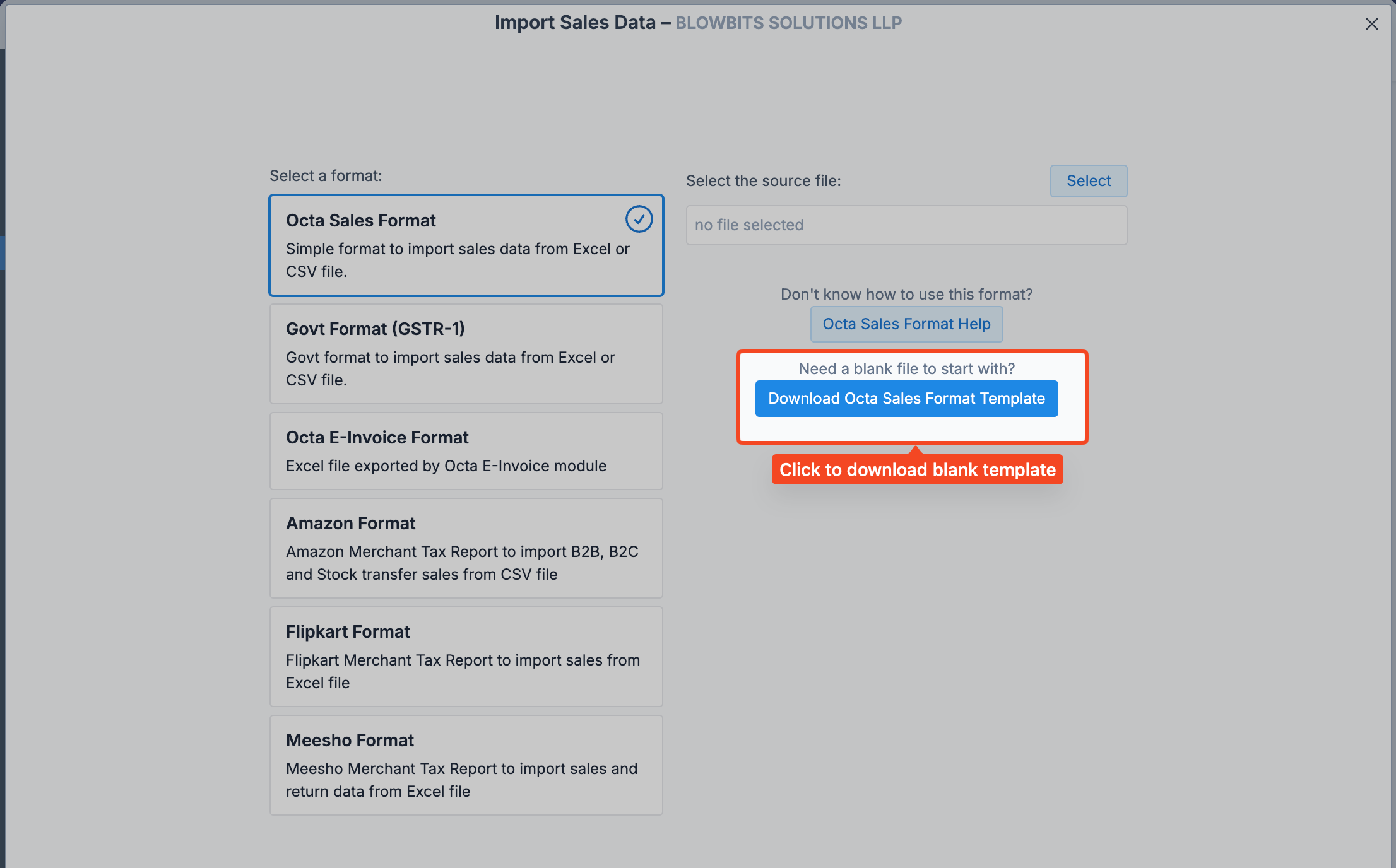
- Open your company in Octa
- Go to the Sales page/section
- Click the Import button
- Look for the Octa Sales Format option in the dropdown/list
- Click the Download Template button (next to Octa Sales Format box)
- The blank Excel file (.xlsx) will download to your computer
Step 2: Fill the Template with Your Sales Data
Open the downloaded template — it has these key sheets:
| Sheet | What it's for |
|---|---|
| Overview | Just info & instructions (Octa ignores this sheet) |
| Help | Super helpful! Explains every sheet and column in detail — read this first! |
| Sales | Enter document-level data (individual invoices, credit notes, etc.) — recommended! |
| SalesSummary | Enter summary-level totals (only if document-level isn't available) |
| SalesHSN | Enter HSN-wise summary (only if HSN code and quantity is not specified in Sales sheet) |
| DocIssued | List document number series used in the period |
| References | Master lists for codes (state codes, UQC (unit quantity codes), etc.) |
Color coding in the template makes it easy:
- Blue columns → Mandatory (must fill)
- Green columns → Optional (fill if you have the info)
- Light Blue columns → Conditional (only required in specific cases, like exports or e-commerce)
If possible, always import at document level including HSN codes (using the Sales sheet) — even for B2C sales. Octa will automatically calculate all summaries (B2C, HSN, e-commerce, etc.) for you — accurate and zero effort!
Never import the same transaction at both document level and summary level. This causes double counting of sales, taxes, and liability — leading to wrong GSTR-1 totals.
Step 3: Import into Octa
- Open your company in Octa (same as Step 1)
- Go back to the Sales page
- Click the Import button again
- From the format dropdown, select Octa Format
- Upload the filled Excel file you prepared
- Click Continue and follow the simple on-screen prompts (Octa will guide you!)
The import is lightning-fast — usually done in under a minute!
What Happens If There Are Errors?
Octa checks everything before importing. Nothing is imported until the file is error free.
- If issues are found, you'll see a clear error list with row/sheet details.
- You can download an Error Report Excel file.
- Correct the problems in your template, save, and re-upload — repeat until all errors are gone!
This format gives you maximum control and flexibility — ideal for businesses with complex sales or multiple GSTINs. If filling the template feels tricky or you need help mapping your data, raise a support ticket — our team can guide you!