Importing Sales Register
Amazon Format
Octa makes GST filing effortless for Amazon sellers! With direct import of your Amazon Monthly Tax Report (MTR) and Amazon Stock Transfer Report (STR), Octa automatically pulls in your sales data, classifies transactions, and prepares key parts of your GSTR-1 — no manual conversion needed. Save hours of work every month!
What Octa Processes Amazon MTR/STR Data?
After a successful import, Octa processes everything and auto-generates these GSTR-1 sections for you:
- B2B invoice-level details (with GSTINs, invoice numbers, etc.)
- B2C summary (total state-wise sales, taxes, etc.)
- HSN Summary (HSN-wise tax breakdown)
- E-commerce Summary (TCS details)
Ready-to-use for filing — just review and submit!
How to Import?
Step 1: Download Your Amazon MTR/STR File
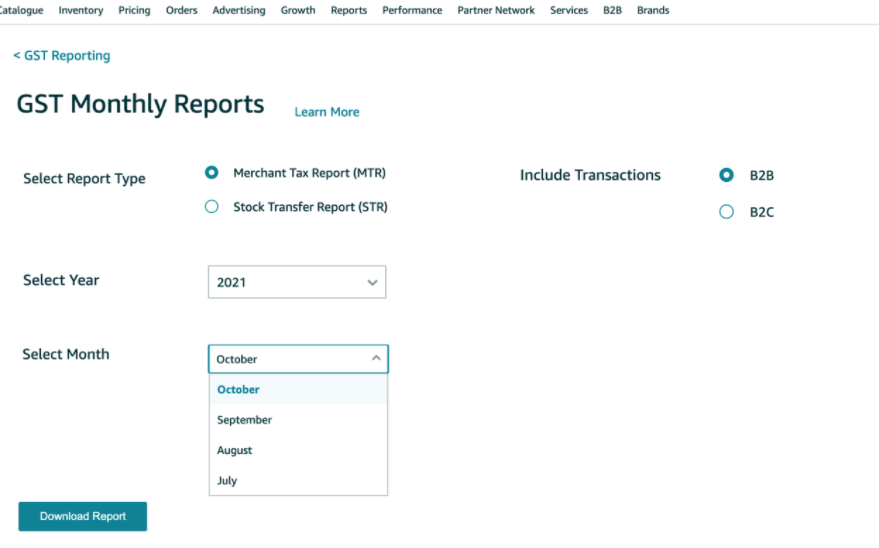
- Log in to your Amazon Seller Central account (sellercentral.amazon.in)
- Go to Reports > Manage Taxes (or look for GST Monthly Reports section)
- Select Merchant Tax Report (MTR) as the report type
- Choose report type
- Merchant Tax Report (MTR) - B2B
- Merchant Tax Report (MTR) - B2C
- Stock Transfer Report (STR)
- Choose the year and month you need
- Click Download Report — it usually comes as an Excel file (often named something like GST_MTR_B2B.xlsx or similar)
Amazon typically makes the previous month's MTR available by the 5th of the current month. For exact steps, refer this article or check Amazon Seller Central's help section on GST reports (search for "GST Monthly Report" or "MTR" in Seller Central).
Step 2: Import into Octa
- Open your company in Octa
- Go to the Sales page
- Click the Import button
- From the format dropdown, choose Amazon Format
- Select the MTR Excel file you just downloaded
- Select the Period (month/quarter) this file covers — match it to your GST return period
- Click Continue and follow the simple on-screen prompts (Octa will guide you!)
That's it! Import usually completes in less than a minute.
Quick Troubleshooting Tips
- Make sure the file is the correct MTR export (not a different report like payments or summary).
- If you get errors: Octa shows clear messages with row numbers — fix in your Excel file and re-upload.
- Need both B2B and B2C? Import each file separately — Octa combines them automatically.
- Need to import stock transfer data? Generate and import STR file — Octa will combine all data automatically.