Basics
GST Portal Access
Octa pulls your data from the GST Portal, such as GSTR-2B, IMS and filed returns, and pushes your returns and actions back to it. To do that for a GSTIN, Octa needs access to the GST Portal on that GSTIN's behalf.
Buttons That Reach the GST Portal
Buttons that work with the GST Portal are purple. A small mark on the button tells how it reaches the portal; hover over the button to see the mode.
| Mode | How it works | Needs |
|---|---|---|
| Password mode | Octa works through the GST Portal from your browser, logged in with the GSTIN's username & password | The Octa browser extension, and a GST Portal login for the GSTIN |
| OTP mode | Octa works with the GST System for you, after the GSTIN is connected with an OTP | OTP mode in your plan, API access enabled on the GST Portal |
| No mark | Reads public information, such as the filing status of a GSTIN | Nothing |
Where a page offers both modes, use either one. Some operations exist only in password mode.
Password Mode
Password mode works from your own browser, through the Octa browser extension.
- Use Chrome, Edge, Brave, Opera or another Chromium-based browser.
- Install the Octa GST Assistant extension from the Chrome Web Store. If it is missing, Octa offers to install it the first time you need it.
Log In to the GST Portal
- Open the company's GSTINs page, or the dashboard of any module.
- Click Login in the GSTIN's GST Portal column.
- Enter the GSTIN's GST Portal User Name and Password. Octa reads the captcha for you.
- Tick Save Password to save the username and password in Octa, so you don't have to enter them next time.
- Click Login.
Once you are logged in, the Open button opens the GST Portal in a new tab, already logged in for that GSTIN. Your browser stays logged in to the GST Portal for one GSTIN at a time: logging in for another GSTIN logs out of the first.
Password mode has no limit on the number of operations. A fair usage policy applies.
OTP Contact
When you log in, Octa also reads the GSTIN's OTP contact from the GST Portal: the name, mobile number and email of its primary authorised signatory. The GST Portal sends its OTPs to this person. The OTP Contact column of the GSTINs page shows it, so you know whom to ask for an OTP.
OTP Mode
In OTP mode, Octa connects to the GST System on the GSTIN's behalf. Once connected, Octa can pull and push data without anyone being logged in to the GST Portal, for example while the Robot works on a long job.
OTP mode is available only if your plan includes it. The GSTINs page and the module dashboards then show a GST System column.
Connect a GSTIN
- Enable API access for the GSTIN on the GST Portal.
- Click Connect in the GSTIN's GST System column.
- Enter the GSTIN's GST Portal User Name and click Send OTP. The GST Portal sends an OTP to the GSTIN's OTP contact.
- Enter the OTP and click Verify OTP.
The GSTIN now shows Connected. Hover over it to see until when the connection lasts. Octa keeps the connection alive while your plan allows; after that, connect again with a new OTP.
Daily Usage
The lightning button in the bar at the top of the app shows how many OTP-mode operations you have used today, when your plan has a daily limit. Click it to open the GST System panel: today's usage and your plan's terms for each mode. The count starts again at midnight (IST). Connect, Login and Open don't count as operations.
Disconnect
Subscription admins can end a GSTIN's OTP-mode connection: click the GSTIN's ⓘ button and click Disconnect in the GST System row.
Enable API Access on the GST Portal
OTP mode needs API access to be enabled for the GSTIN on the GST Portal. Do this once for each GSTIN, and again when the duration you chose ends.
-
Log in to the GST Portal.
-
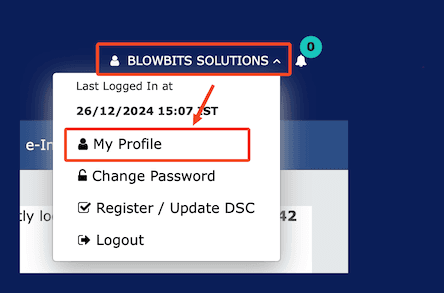
Open My Profile.
-
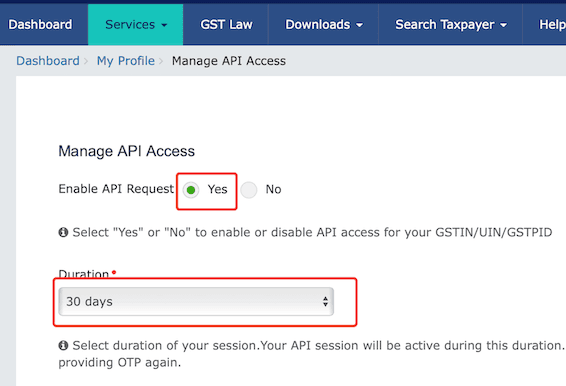
Click Manage API Access.
-
Select Enable API Request: Yes.
-
Select a Duration, for example 30 Days.
-
Click Confirm.
Reset a GSTIN's Access
To remove what Octa has saved for a GSTIN, click the GSTIN's ⓘ button and click Reset. This clears the saved GST Portal username and password, the OTP contact and the GST System connection.